1 Java
1.1 What is Java?
Java is a general-purpose programming language. It is used to write various kinds of software.
1.2 Command line
We will be using the command line/terminal/console to install Java and everything else we need. It is a text-based interface used to interact with computers by entering commands. Since you will have to know how to use the command line for future courses, it is recommended to start using and learning about it now.
1.3 How to install Java
First, check if Java is already installed on your computer. Click on the name of your operating system below and follow the steps shown:
► Windows
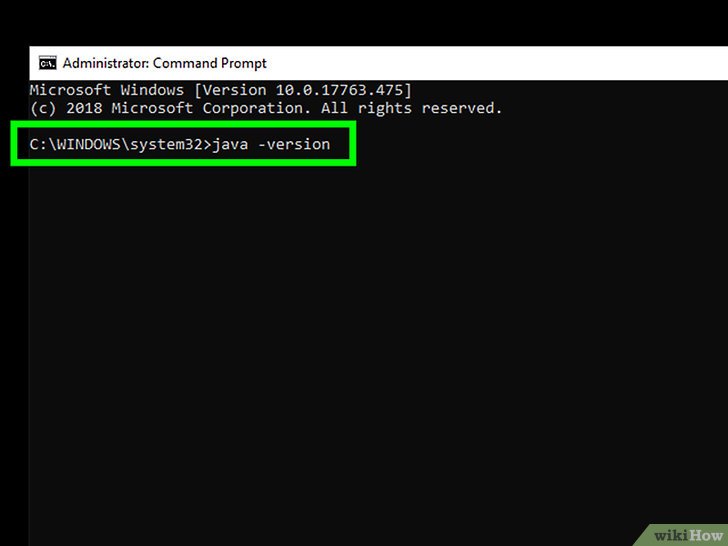
- open the application Command Prompt
- type or paste the command below and press enter
java -version
► MacOS
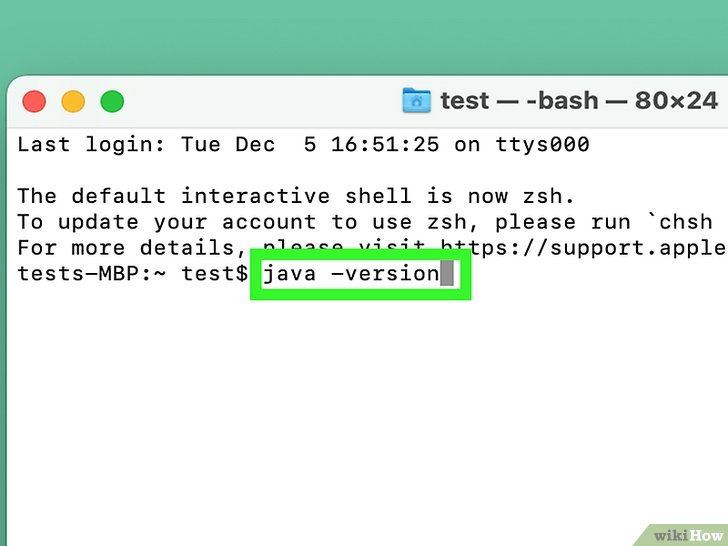
- open the application Terminal
- type or paste the command below and press enter
java -version
► Linux
you know what you're doing :D but in case you don't:- open the application terminal
- type or paste the command below and press enter
java -version
Inspect the output: if it looks anything like
openjdk version "24.0.1" 2025-04-15
OpenJDK Runtime Environment (build 24.0.1+9-30)
OpenJDK 64-Bit Server VM (build 24.0.1+9-30, mixed mode, sharing)
, Java is already installed on your computer. Skip the instructions below and move on to the next step, installing Git & setting up GitHub, by using the menu on the left or scrolling up and clicking on the arrow on the right.
If Java is not installed, download it from here (all operating systems), open it, and follow the instructions. Then, if you are using Windows:
► Windows
Check if theJAVA_HOME variable is set. It allows other software to see your Java installation.
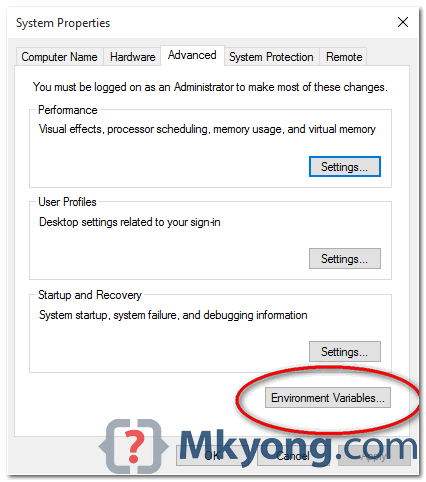
- type or paste 'advanced system settings' into the start menu
- click on 'view advanced system settings'
- go to the 'advanced' tab
- click on 'environment variables'
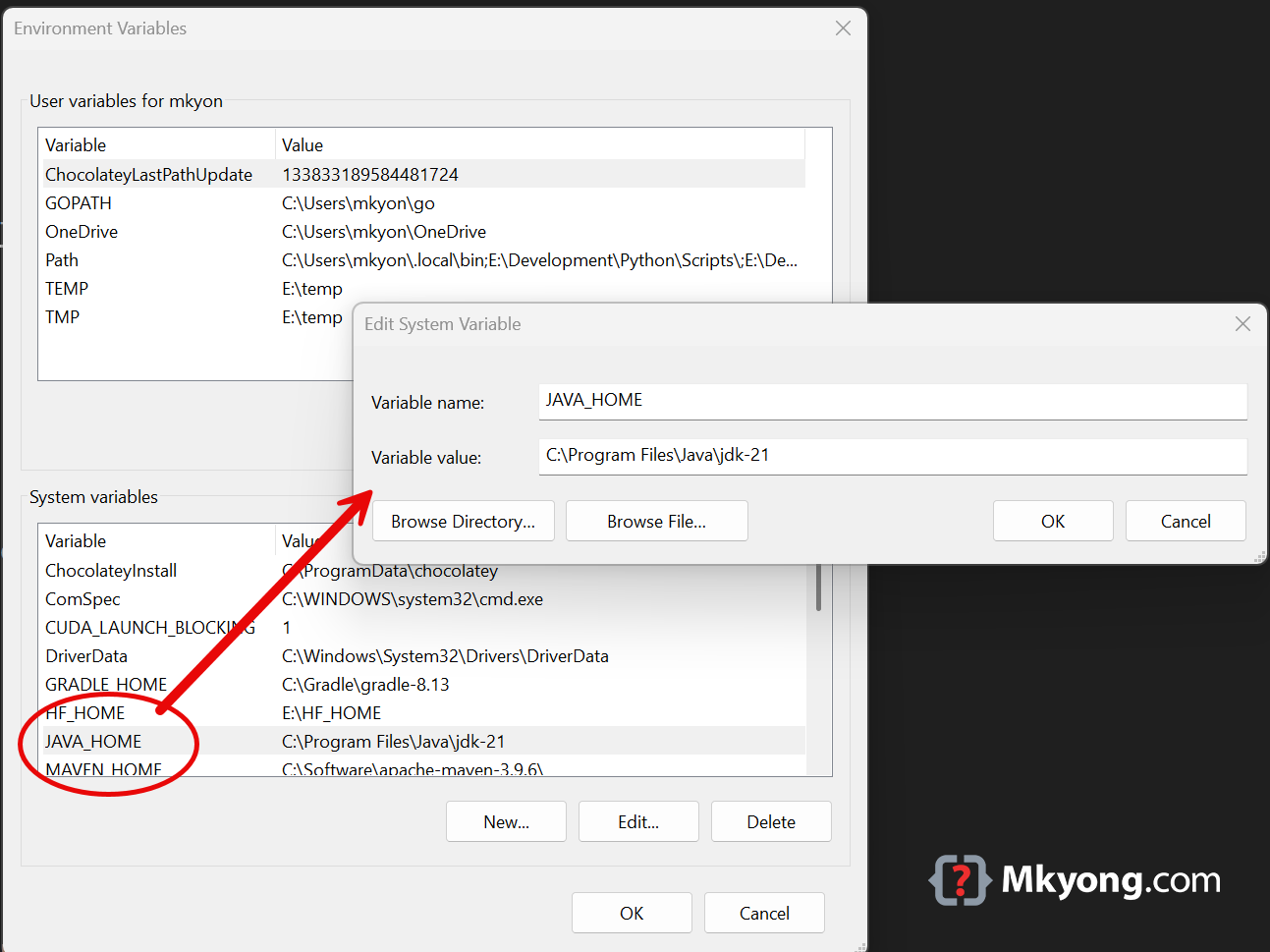
- if
JAVA_HOMEexists under 'system variables' and has a value similar toC:\Program Files\Java\jdk-21, it is already set. Go to the next step, installing Git, by using the menu on the left or scrolling up and clicking on the arrow on the right. Else: - click on the 'new' button under the 'system variables' section
- set name to
JAVA_HOME - set value to the location of your Java installation, which should look something like
C:\Program Files\Java\jdk-21. If you do not know the location, find it using File Explorer - to test if the variable has been set correctly, go back to the command prompt and type or paste the command below and press enter; check the output
echo %JAVA_HOME%
Double-check if Java was installed successfully by running
java -version
as described above.
Done. Move on to the next step, installing Git & setting up GitHub, by using the menu on the left or returning to the top of this page and clicking on the arrow on the right.
1st image taken from https://www.wikihow.com/Check-Your-Java-Version-in-the-Windows-Command-Line, 08/10/2025
2nd image taken from https://www.wikihow.com/Check-Java-Version-on-a-Mac, 08/10/2025
last images taken from https://mkyong.com/java/how-to-set-java_home-on-windows-10/, 08/10/2025